Sunday, 14 April 2013

Redirect Infopath Webpart to Custom URl after Submit the Form


This is the solution to recirect the Infopath webpart to custom URl, after submit the form.

Step1: Create a page and add Infopath Webpart.
Step2: Refer the Infopath Form in Infopath Webpart.
Step3: Add a content Editor Webpart to the Infopath webpart page and add below code.

script src="http://ajax.googleapis.com/ajax/libs/jquery/1.4.1/jquery.min.js" type="text/javascript"
/script

script src="http://ajax.googleapis.com/ajax/libs/prototype/1.6.1.0/prototype.js" type="text/javascript"
/script
script src="http://ajax.googleapis.com/ajax/libs/scriptaculous/1.8.3/scriptaculous.js" type="text/javascript"
/script
script type="text/javascript"
( function($)
{
$(document).ready(
function()
{
if($('#DialogFinalMessage').children().length>0)
{
window.location.href = "custom url";
}
}
);
} ) ( jQuery );
/script

Wednesday, 27 March 2013

Display Icon in the Library column in SharePoint 2010

Just like that :-
Following are the Steps:-
1. Go to SharePoint Library, create one column "Status" name with three dropdow values:-
     -Green
     -Red
     -Yellow
2. Create another column, Calculated (calculation based on other columns) and some code in formula.


Code Example:-
=IF(Status="Green","image url",IF(Status="Red","image url",IF(Status="Yellow","image url")))

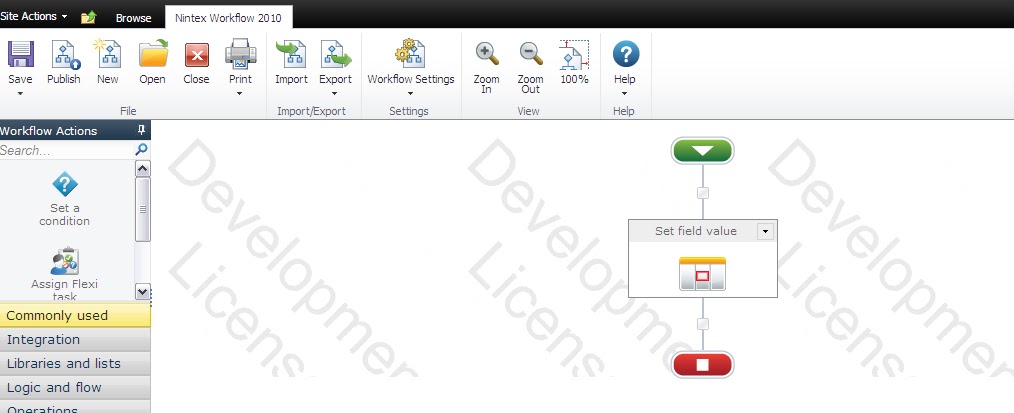
Set HyperLink URL and Description in SharePoint Library/List columns using Nintex Workflow 2010

Just Like:-
Following are the Steps to set the hyperlink url and description in the SharePoint using Nintex workflow 2010:-
1. Create Nintex workflow, take one "SET FIELD VALUE" control.
2. Configure the set field value control

Format: HyperLink URL then "," and then " "space

Example: we are using (www.google.com, google)  then it shows only google in fornt end and www.google.com back end .

Monday, 18 March 2013

Print Feature in the InfoPath in SharePoint Library

Problem: - User wants to print the InfoPath Form through browser in the SharePoint.
For example, user has created one list or library and opened the document including all data for print purpose without cuts off any data.

Solution: - Out of the box InfoPath print functionality is only present in SharePoint Library not in SharePoint List. For list we need some customization in the InfoPath code behind.

Example with SharePoint Library:-
According to user requirement, take one form library for print functionality. Following are the steps to configure the “Print Functionality”.
1. Take one InfoPath Form with two views, “Main View” for entering all the data and “Print View” for only displaying all the data.

2. Main view is very simple to create by just drag-drop the controls but Print view takes “Calculated Value” control for binding the existing fields like textbox, rich text box etc. in print view.

3. InfoPath under File > Info > Form Options you have several possibilities to restrict users from doing stuff with your form. To get the print functionality you need to enable the InfoPath Ribbon ("Show InfoPath commands in Ribbon or toolbar" and also the Print Preview option”)

4. Publish the InfoPath Form in SharePoint Library, then open the items and click the “print view” in the top menu bar.


Saturday, 9 March 2013

"Alert Me" Feature Configuration in SharePoint

Problem: - User wants to see all the items which are Added or Updated within a day in the SharePoint list or library. Just one example, one user has an owner of the SharePoint site. He creates one list (name Employee Details) and he want know how many items are added or updated in a day. He wants all the data in the form of email at the end of the day (just like Employee Details- Daily Summary).


Solution: - It is possible in many ways like in Nintex workflow, SharePoint Designer workflow but most simple way is using Out of box “Alert feature”. It is very simple or everyone who has permission can able to configure the alert feature in the list or library in the SharePoint.

Following are the steps of configuration the “Alert” feature in the SharePoint:-
1. Log into SharePoint site.
2. Go to list or library where you want to configure the alert feature then click on “Alert Me” tab in list tools.

3.Then configure according to conditions:- - User wants to see all the items which are Added or Updated within a day in the SharePoint list.


Tuesday, 12 February 2013

Insert dynamic table in email body using nintex workflow 2010


 Following are the steps:-
1. At first take one "Query List" ,  query all the data according to sort function and store it in collection Var.
2. then take one "For Each" configuation it.
3. then take one "Set Variable" for storing the current item value (Like varProject_name=Project Name).
4. then take one "Build String" configuration it. like..
      <#tr><#td>varProject_name<#/td><#/tr>{workflow:MailBody}
      -MailBody is multiple line textbox.
5. After completed the For Each loop, then Add one "Build String" control.
      <#table><#tr><#td>Project Name<#/td><#/tr>{workflow:MailBody}   <#/table>
6. then take one "Send Notification" control, add in email body {workflow:MailBody}.
7. Save and Publish it.


Thursday, 31 January 2013

Character Limit in RichText Box in Infopath 2010 with SharePoint 2010

How to limited character  enter in Rich Textbox in InfoPath 2010 with SharePoint 2010.

1. At first take one rich text box in Infopath 2010.
2. Add Rule in  Rich Textbox, then select "Validation". Rule type=Validation
3. Set a condition,
      The expression= string-length(.)>10
4.Insert screen tip: "Character Limit to 10"
5.Ok